
Meeting Room Booking and Scheduling Displays: A Complete Guide
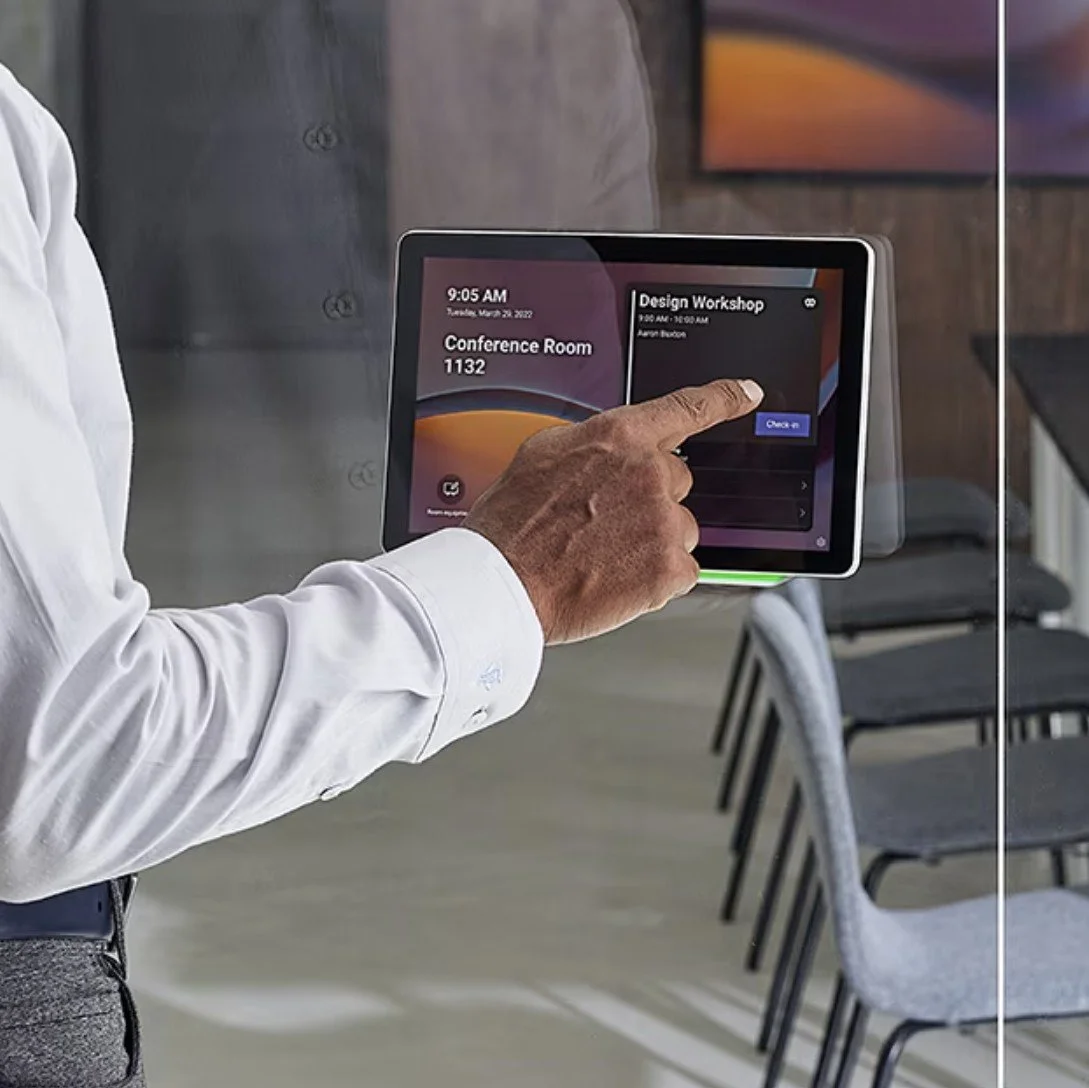
What a Scheduling Display Does
A scheduling display is a small touchscreen (typically 10 to 15 inches) mounted on the wall next to a meeting room door. It connects to your calendar system and shows:
Current status: Available (typically shown in green) or occupied (red) with the name and time of the current meeting
Upcoming schedule: The next several bookings for the room
Walk-up booking: A button to book the room on the spot if it's available
Check-in: Some systems require the organiser to confirm they're using the room. If nobody checks in within a set time, the booking is released and the room becomes available
Extension: The ability to extend a meeting if the room is free after the current booking
The LED light strip on many scheduling displays is visible from a distance, so people can scan a corridor and immediately see which rooms are free without walking up to each one.
Why Scheduling Displays Matter
Ghost Meetings
The single biggest waste of meeting room space. A meeting is booked for 2pm, but the organiser cancelled the meeting without cancelling the room. Or the meeting finished early. The room sits empty with a red "occupied" indicator on the calendar, and colleagues who need a room think it's unavailable.
Scheduling displays with check-in functionality fix this. If nobody taps "check in" on the panel within 5 or 10 minutes of the booking start time, the booking is automatically released. This alone can recover 15 to 30 percent of meeting room capacity in a typical office.
Double Bookings and Walk-Up Conflicts
Someone books a room in Outlook. Someone else walks in because it "looked empty." Arguments ensue. A scheduling display outside the door makes the booking visible and authoritative. If it says the room is booked, the room is booked. If it's green, anyone can book it with a tap.
Space Utilisation Data
Scheduling displays that require check-in generate accurate data about how rooms are actually used, not just how they're booked. This data informs decisions about room allocation, office design, and whether you need more meeting spaces or fewer desks.
Hardware Options
Platform-Specific Panels
The major video conferencing platforms offer scheduling displays designed to integrate directly with their room systems:
| Panel | Platform | Display Size | Key Features |
|---|---|---|---|
| Neat Pad | Teams / Zoom | 10.1" | Touch controller that doubles as a scheduling display. Mounts in-room or outside. |
| Yealink RoomPanel Plus | Teams | 10.1" | Scheduling display with occupancy sensor and ambient light detection. |
| Poly TC10 | Teams / Zoom | 10.1" | Controller panel that can display scheduling when the room is idle. |
| Cisco Room Navigator | Webex | 10" | Scheduling display with environmental sensors (temperature, humidity, noise, air quality). |
| Logitech Tap Scheduler | Teams / Zoom | 10.1" | Purpose-built scheduling panel with LED status bar. |
These panels sync directly with the room system and calendar. When someone books the room in Outlook or Google Calendar, it appears on the panel instantly.
Third-Party Scheduling Displays
Dedicated scheduling display solutions that work independently of the video conferencing platform:
Crestron Room Scheduling: enterprise-grade panels with deep integration into Crestron room control systems
Evoko: standalone scheduling panels with their own cloud management platform
Joan: e-ink displays with low power consumption and wireless installation (no cable runs required)
Condeco: workspace management platform with scheduling panels, desk booking, and space analytics
Third-party solutions are useful if you run multiple video conferencing platforms across different rooms, need scheduling panels for rooms without a video conferencing system, or want advanced workspace analytics that go beyond what platform-native panels provide.
Calendar Integration
Scheduling displays only work if they're connected to your calendar system. The two main scenarios:
Microsoft 365 (Outlook / Exchange Online)
The most common setup for Australian businesses. Each meeting room has a resource mailbox in Exchange Online. When someone books the room in Outlook, the booking appears on the scheduling display.
Setup requirements:
A room resource mailbox for each room in Exchange Online
The scheduling display configured with a device account that has access to the resource mailbox
Auto-accept configured on the resource mailbox so bookings are confirmed immediately
Optionally: booking policies to restrict who can book, maximum booking duration, and advance booking windows
Google Workspace (Google Calendar)
Google Calendar rooms work similarly. Each room is a calendar resource. The scheduling display syncs with the room's calendar to show availability.
Most major scheduling panel manufacturers support both Microsoft 365 and Google Workspace. If you're using both (for example, after a merger), third-party scheduling solutions that connect to multiple calendar systems may be the better choice.
Mounting and Installation
Placement
Mount the panel on the wall next to the meeting room door, at eye level (approximately 1.2 to 1.4 metres from the floor). Place it on the same side as the door handle so it's the natural first point of contact when approaching the room.
The LED status indicator (green/red) should be visible from at least 5 metres away so people can scan room availability as they walk down the corridor.
Power and Connectivity
Most scheduling displays require:
Power over Ethernet (PoE): A single ethernet cable provides both data and power. One cable, no power adapter. Requires a PoE-capable network switch.
WiFi + USB power: Some panels (notably Joan) connect via WiFi and charge via USB. This eliminates cable runs entirely but requires reliable WiFi coverage and a nearby power outlet.
For new office fitouts, plan ethernet drops at each meeting room door during construction. Retrofitting cable runs into finished walls is significantly more expensive.
Accessibility
Ensure the panel is accessible to wheelchair users. Mounting at 1.2 metres accommodates both standing and seated users. If your office has specific accessibility requirements under Australian building standards, confirm the mounting height meets those requirements.
Managing Scheduling Displays at Scale
One or two panels are easy to manage. Twenty panels across three offices need a management strategy.
Firmware updates: Like any connected device, scheduling panels need regular firmware updates. These should be coordinated with your room system updates and tested before deployment.
Monitoring: If a panel goes offline (network issue, hardware failure, power problem), the room appears unbooked to the rest of the office. Your IT or managed services team should monitor panels and receive alerts for offline devices.
Calendar hygiene: Scheduling displays expose calendar problems you may not have noticed. Rooms booked for recurring meetings that no longer happen, rooms booked all day as "desk overflow" by one team, rooms double-booked due to delegate permission misconfigurations. Clean up your room calendars before deploying panels, or the panels will simply display the mess in higher resolution.
Replacement planning: Scheduling panels are small computing devices with a 5 to 7 year lifespan. Include them in your hardware lifecycle plan alongside your room systems and workstations.
Advanced Features Worth Considering
Occupancy Sensing
Some panels include sensors that detect whether a room is actually occupied, regardless of the calendar booking. Combined with auto-release (releasing the booking if nobody is detected), this eliminates ghost meetings without requiring users to manually check in.
Cisco Room Navigator and Yealink RoomPanel Plus both include occupancy sensors. Some third-party solutions add external sensors (infrared or visual) for more accurate detection.
Wayfinding Integration
In large offices with dozens of rooms, finding an available room can be difficult. Some scheduling display platforms offer wayfinding: a map view on a central display or kiosk showing all rooms and their real-time status. This is particularly useful for hot-desking environments where staff don't have a "usual" room.
Visitor Management
Scheduling panels can integrate with visitor management systems. When a visitor arrives at reception, the system shows which room their meeting is in. Some panels display a welcome message for the booked meeting's external attendees.
How We Help
We deploy and manage scheduling displays as part of our meeting room solutions. Whether you're adding panels to existing rooms or fitting out a new office, we handle hardware selection, calendar integration, network configuration, mounting, and ongoing management.
Our managed services include monitoring, firmware updates, and troubleshooting for scheduling panels alongside your room systems. When something goes offline, we know about it before you do.
Book a free room assessment. We'll evaluate your meeting spaces and recommend a scheduling display solution that fits your rooms and your calendar system.